
I got the idea to create this tutorial when my cousin asked me to help him restore the drive icons on his laptop. He explained to me that he recently installed a tweaking program that changed the default driver icons and after uninstalling the program, the default drive icons went missing and he couldn’t restore it. Below is a screenshot that he sent me.
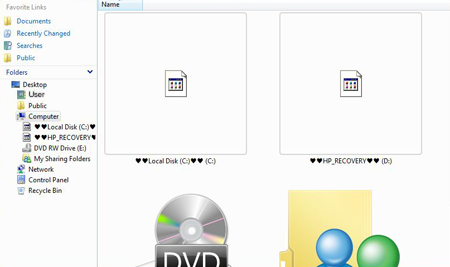
As you can see from the screenshot above, the default icons for Drive C and D are both missing.








This issue usually happens when you install a third-party tweaking program to change the original drive icons or this could also be caused by a virus or other forms of malware. For the regular user, this could be a daunting task but don’t worry because this tutorial will show you how to restore the default drive icons in a few short steps.
DISCLAIMER:
This process involves editing the system registry, so make sure you read and follow instructions. Editing and deleting the wrong registry key could mess up your computer. Proceed at your own risk.
- Open regedit (click on Windows logo and type “regedit” on the Search bar and hit ENTER)
- Go to: HKEY_LOCAL_MACHINESOFTWAREMicrosoftWindowsCurrentVersionexplorer
- In explorer, look for a key named “DriveIcons“, right click on it and click on Delete. (my screenshot doesn’t have that key because my default icons are not missing)
- Log off or restart your computer.
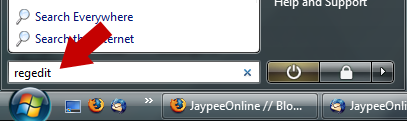
(Click on the small arrow on the left side to expand HKEY_LOCAL_MACHINE and scroll down to SOFTWARE and click on the small arrow to expand it. Repeat same procedure until you get to explorer)
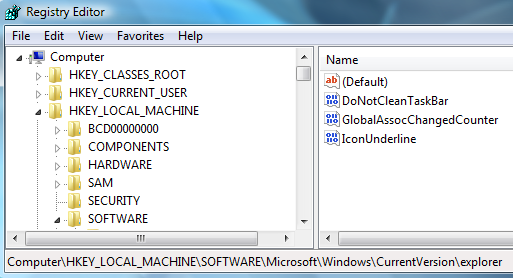
That should do it! If you followed instructions correctly, the default drive icons should be restored after you log back to your computer.
Anyone else experience this problem on your Windows Vista-powered computer? What did you do to fix it? In case you know of a different way of solving this issue, please share it with us.
If you found this tutorial useful and would like to share it with others, please don’t forget to bookmark it. Thank you!


Thanks for the tips, couldn’t fix this on vista x64 any ideas…
ok never mind about the copies i fit that just want it to read the right icon or read the right disk i put in it in fact if i put another disk in it it will work right just not the vegas2 disk
P.S. i just uninstalled my cdroms but now i have copies please help it is now getting worse thanks
hey what if you don’t have (DriveIcons) in the reg but you still have a bad icon ? please help thanks
@arun – have you tried uninstalling HD Sentinel first, to see if that solves the problem before doing this? If not, uninstall it and do a reboot. Let me know if it works. :)
hello sir
i have installed HD sentinel pro and my drive icons are all changed .. i followed ur method and still it does not work … is there any method .. by the way i am using windows 7 beta 64 bit …
@jhay – Yeah, that’s true. Although they don’t have to worry about anything if only they’d read and follow instructions carefully. Right?
Do you know of any program that does that? If you do, let me know so I can update this post and include it here. Thanks dude! :)
@doitz – Hello! You’re welcome, glad I could help you. ;)
hello there….hehe I remember this shit happened to me one time….but with the help of jaypee online…everythings get back to normal:) thanks again:)
Nice neat trick. Though this would scare most users because it involves diving into the registry. ;)
Others would Google for a program that restores the default icons instead. There are lots of it out in the net, though I can’t recall the last one I used when I had the similar problem with my friend’s notebook.