Received an email from an anonymous reader asking help on how to block, disable or bypass CPALead surveys and other online surveys. For those who are not familiar with CPALead or online surveys, these are CPA or Cost Per Action advertising tools that some people use to monetize their website and are common for sites that offer popular media and other downloadable content.
When you try to access a site with a CPALead survey or other online surveys, you’ll be greeted by something like this: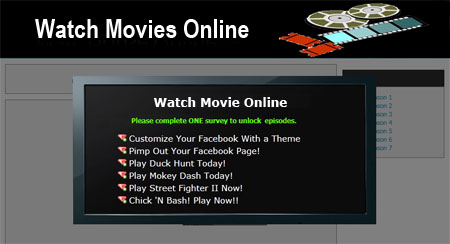
Users are required to fill up these online surveys or download and install games before they can proceed and get the stuff that they want. For most users, these online surveys are very annoying and time-consuming and many times, filling up surveys doesn’t guarantee that the content they’re looking for will be provided. That’s why many users would just like to block, disable or bypass these online surveys so they can get immediate access to the stuff that they’re looking for.









Today, I’ll share with you a few simple but effective tricks on how to block, disable or bypass online surveys.
Mozilla Firefox No Add-on Method
1. Open Firefox.
2. Go to the website that has the online survey (Let website load completely).
3. On Firefox, click on View > Page Style > No Style.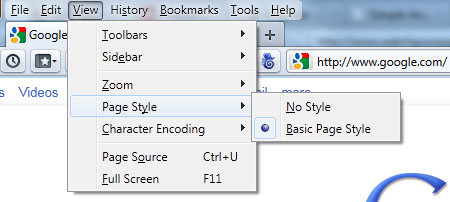
4. Firefox will disable all web styling elements (CSS, Javascript).
5. You should now have access to the content without being bothered by the online survey.
With the CSS & Javascript disabled, the online surveys won’t show up so you’ll have access to the content that you need. This should work most of the time unless the website is designed to check if the online survey is running or not. If that’s the case, then you can try any of the methods below.
Mozilla Firefox Add-on Method #1
1. Download and Install the NoScript Addon for Firefox.
2. Restart Firefox.
3. Go to the website that has the online survey (Let website load completely).
4. Click the NoScript Addon Options found at the bottom of the browser (Displays all enabled/disabled scripts).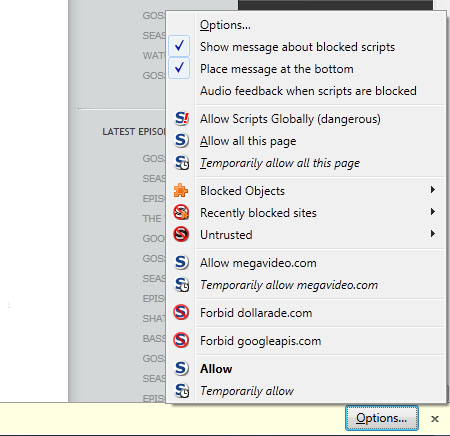
5. Scripts vary for each website. You can determine which one is the online survey script by allowing scripts one at a time. Once the online survey pops up, revoke access to the last script that you allowed. (Options > Forbid [name of script])
6. If you’re trying to access an embedded video, allow it via Options > Blocked Objects.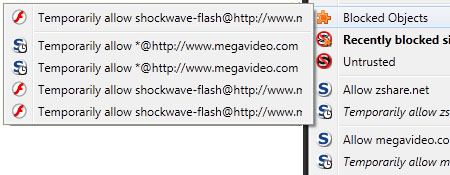
7. You should now have access to the content without being bothered by the online survey.
Mozilla Firefox Add-on Method #2
1. Download and Install the QuickJava Addon for Firefox.
2. Restart Firefox.
3. The QuickJava toolbar will appear on the bottom of the screen of Firefox.
4. Go to the website that has the online survey (Let website load completely).
5. Disable scripts by click on the icons: Js — Javascript, J — Java, F — Flash, SL — Silverlight, I — Images or CSS (Disabled = red icon, Enabled = blue icon)
6. You should now have access to the content without being bothered by the online survey.
Methods 2 & 3 are practically the same as the No Add-on Method but they are a bit more complicated and allows more control over which scripts to enable/disable.
GreaseMonkey Script Method* (Mozilla Firefox & Google Chrome)
1. Requires the Greasemonkey script. get it here if you don’t have it yet.
2. Install the CPALead Remover script from Userscripts.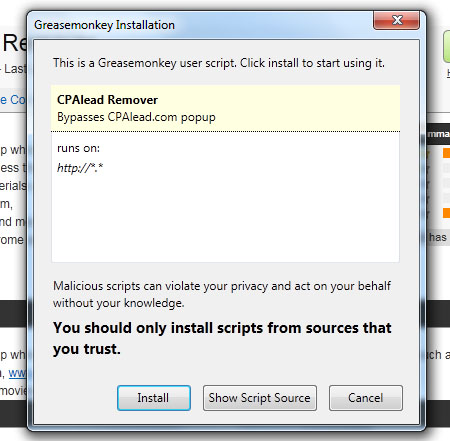
3. Restart your web browser (Firefox or Chrome).
4. Go to the website that has the CPALead survey.
5. You should now have access to the content without being bothered by the online survey.
*This method only blocks CPALead surveys.
NOTE: Make sure that you only use one add-on/script at a time to avoid conflicts and to ensure that the script/addon functions properly. Try out each one and keep the one that works for you.
Hope this tutorial on how to block online surveys was able to help you save you time and get rid of those annoying online surveys. If you know of any other methods or tricks on how to block, disable or bypass online surveys, please do share on the comments section.



As I see, survey sites can be separated by some gruops :
1.Survey box pops up when you load the site
2.Survey box pops up when you click the download button
and…..
1)Download page is simply blocked by survey pop-up
2)Whole page is survey so you need to finish survey so it will lead you to other link(sometimes there’s no distinct download button, so you don’t know the heck what to do with it)
Sharecash is the example of 2) and fileurl is the example of 2.
In my opinion, I really don’t have any solution to 2) type of survey.
Plus, a survey remover called ‘XJV bookmarklet’ doesn’t work on most sites.
What should I do with these? T-T
What about the surveys that will show you the download link when you pass them? anyway to bypass or easily complete them? If you know a way please tell me. Thanks
Can you please help me with this website it has online survey and I cannot bypass it I did what you told me but still don’t work there’s plenty of other sites can you please help
Ugh, I tried everything and they all don’t work! FileURL.me is effing stubborn.
ure amazing, but the download button ainnt working
The button is probably a flash or other instance so while you are at the button you have to turn java or flash or (whatever you turned off) back on . You then should be able to push the button you nught have to refresh but now that you have the address right to the down load page you will bypass the survey.,,,,
thanks
AWESOMEE!!!
Thanks. It worked for me perfectly!!!
Both methods seem to work fine, although I can’t seem to get the file for anything. It will bypass the survey, but I think it can’t bypass the registry that would have authenticated that the person actually did the survey to get past. Any help?
I m trying to get a file from sharecash for a long time, but just end up with failure and dissapointment :( So ill try out your methods and if they dont work, as well ill give you the url. You have to download it for me and send it to my email. You are the last hope for me! Its true. Thank u sir.
is this works on sharcash and filesmy?
i hope it works..
i get rid of any survey but, i cant download anythings
Sir,
can you make of video of this so i can totally understand it thanks
i want to download a file from fileurl.me
please sir
Hi Mr.Jaypee Habaradas
Thanks for being honest and helping people to enjoy surfing on the net, plus what they want to download.
Keep going forward. Such a person like you always are welcome anywhere with a bright mind.
Bless and bye.
omg thanks so much now i can do stuff without those annoying surveys
thankssssssssssssssssssssssssssssssssssssssssssssssssssss
particularly useful. im always bothered by this cpalead thingy when i search for tutorials hehe