
WordPress Comment Notifier is a cool application created by How-To Geek that will help you save time by notifying you of new comments awaiting moderation in your WordPress blog right from your desktop.
Many people like myself don’t completely trust the various WordPress spam filters and elect to moderate all comments before they show up on the actual site, which ends up flooding your email with moderation notices.
In my quest to keep a clean inbox, I’ve created a small application that notifies me directly on my desktop when new comments come in to the moderation queue. It accesses the WordPress XML-RPC API by means of a small WordPress plugin that I’ve created.









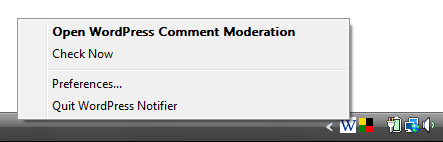
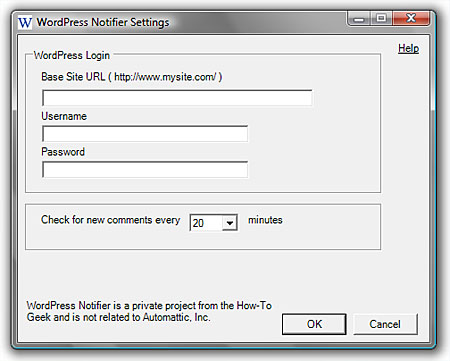
Screenshots:
Installation:
Unzip WordPressNotify_0.1.zip and place it in any folder/directory you want. The zip file contains several files so make sure you have all files in one place. If you want the WordPress Comment Notifier to run on startup, you’ll have to create a shortcut in the startup folder.
Once you have the files in place, just launch the application by double clicking on WordPress_Notify.exe. After which you’ll see the WordPress Comment Notifier icon at the system tray. Right click on the icon and click on Preferences to add your username and password. You can also specify how often the plugin should check for new comments.
NOTE: Make sure you upload the geek-wp-notifier.php file into your wp-content/plugins folder for the WordPress Comment Notifier to work.
System Requirements:
.NET 2.0 Framework
Btw, passwords used by the WordPress Comment Notifier are encrypted and stored in the xml file. However, this doesn’t make it 100% secure so install this plugin at your own risk. The plugin author doesn’t take responsibility for anything that could happen because of this issue. This app is based on the Google Reader Notifier application.
My Take:
I like the idea and purpose of this plugin plus installation and configuration was a no-brainer. It took me a couple minutes to install and configure everything and make the thing work. However, I don’t have the need for this application because I have Mozilla Thunderbird running all the time where I get notifications of new emails including comments awaiting moderation. But still, the WordPress Comment Notifier is a cool app and I’m sure many WordPress users would find it helpful and useful. Hats off to How-To Geek for coming up with this idea. I give the WordPress Comment Notifier a 4.5 out of 5.
Download the WordPress Comment Notifier plugin.



@McBilly – Yeah, it’s very useful. Thunderbird makes it easier for me to organize and manage my email. If you haven’t tried it, you should. It’s like Firefox coz there’s a lot of themes and add-ons to choose from. :D
It looks good Jaypee. And useful too. But I’m also curious on using that Mozilla Thunderbird. :wink:
@Dexter – Have you used Thunderbird before? When Thunderbird is open, you’ll get notifications via a small pop-up like window near the system tray. That window shows the subject title, who it’s from and an excerpt of the message. From that, I’ll know if I have a new comment awaiting moderation in my blog. :)
How are you using Mozilla Thunderbird for the Email Notification..?