
When I upgraded the W3 Total Cache (W3TC) plugin to the latest version about a week ago, I noticed one new feature under the General Settings tab – the ability to display a Google Page Speed report on the WordPress dashboard via a dashboard widget. For those who are using the W3 Total Cache plugin, this new feature will really be useful because it will enable users to get the Google Page Speed results of their site from right within the WordPress dashboard.
If you already have the W3 Total Cache plugin and would like to enable this feature, just follow these simple steps:
- Make sure you have the latest version of W3 Total Cache installed.
- Get the Page Speed API Key from the Google APIs Console (Google account required).
- Click on the Services tab.

- Activate the Page Speed Online API.
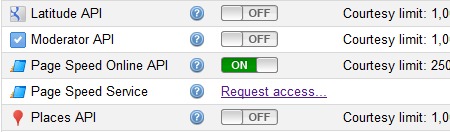
- Accept the Terms of Service.
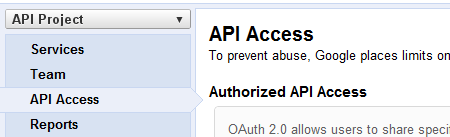
- Click on the API Access tab.
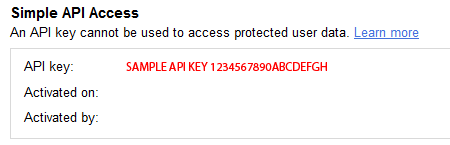
- Copy the API key in the Simple API Access section.
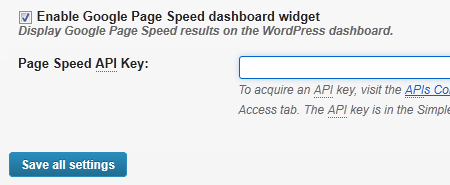
- On the W3 Total Cache plugin settings, go to General Settings > Miscellaneous.
- Put a check on the “Enable Google Page Speed dashboard widget” option.
- Enter the API key on the space provided and click on Save all settings.

- Go to the WordPress dashboard and see your site results on the W3 Total Cache: Google Page Speed Report widget.









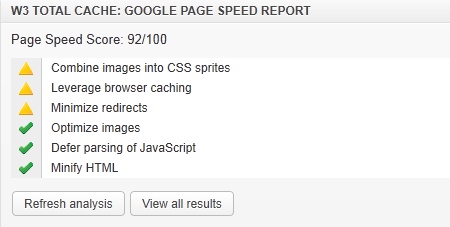
Hope this short and simple tutorial on how to enable the W3 Total Cache Google Page Speed Report WordPress dashboard widget helped you. Feel free to bookmark and share this post.
NOTE: This tutorial is meant for W3 Total Cache plugin users who want to enable the Google Page Speed Report on their WordPress dashboard. Although W3 Total Cache is a very useful plugin, it is a bit complicated to use and configure so it would not be practical to install it just for the sake of enabling the Google Page Speed Report.




I’ve actually tried W3TC before but unfortunately my site became slower that it actually may have helped in speeding up. I’ve used Hyper Cache nowadays. Low Maintenance.
and for site speed and stuff I just use other tools online.
More power!
…but the page “speed” per se cant be edited coz it will be dependent on the wordpress configuration itself