
The Gmail team is constantly working on making improvements and adding new features to the service. Earlier today, they announced a new feature in Gmail Labs called Preview Pane which enables the user to quickly and conveniently preview email messages. In the past, users relied on the short snippets to find out what the email is about, so figuring out which emails to read first becomes tricky or like a guessing game.
Screenshots:
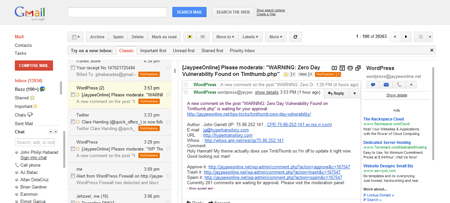
Gmail Preview Pane Vertical Split
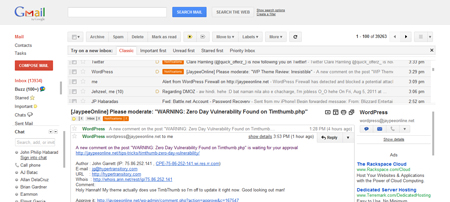
Gmail Preview Pane Horizontal Split
How to enable Preview Pane:









- Login to your Gmail account.
- Click on the gear icon (upper right corner)
- Click on Labs
- Look for Preview Pane by Peter B & Michael K.
- Click on Enable and then Save Changes.
Now that Preview Pane has been enabled, head over to the Inbox and look for the toggle button in the upper right corner of the message list. The toggle button allows users to switch between Preview (Vertical Split) and List (No Split) views.
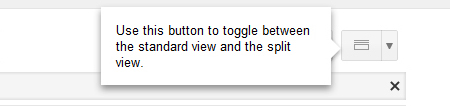
For those who have more space on their monitor (bigger screen/resolution), clicking on the dropdown arrow beside the toggle button allows users to choose a third viewing option – Horizontal Split, which puts the preview pane below the message list.
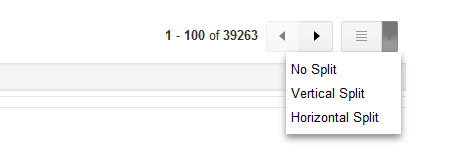
By default, the Preview Pane marks an email as read after previewing it for 3 seconds. Users can customize this setting by going to the General tab in Gmail settings and changing the value.

Since joining Google+, I’ve been using the web version of Gmail more often so I was very happy to find out about the addition of the Preview Pane feature. Having the Preview Pane allows me to view and read emails quickly and conveniently without having to move back and forth between emails as I did in the past.
This kind of layout is already been available in third-party email clients like Thunderbird and Outlook so I’m pretty sure Gmail users will like this new feature. I use Thunderbird on Ubuntu and I prefer using the Horizontal Split view. The Preview Pane feature works well if you have a widescreen monitor that has a large resolution.
Anyone else tried using the new Gmail Preview Pane feature? How do you like it so far? Which previewing mode do you prefer – the traditional No Split one? the Vertical Split view? or the Horizontal Split view?



Today I read about a new great LAB which is called “PREVIEW PANE” I was really excited about this one except…. I noticed not long after that, a bug that needs consideration :
I could no longer scroll down through my Canned responses !?!
I tried split, no split but they all keep me from scrolling down my Canned responses.
I would love to use this lab, but my canned response are a priority !! Can anybody fix this ?
Very detailed info. I just installed it but couldn’t figure out the toggle button. Thanks